
The latest update for the DocuWare Add-in for Microsoft Outlook gives users more options and an improved user experience when archiving emails with attachments such as invoices. They can add a document processing configuration for automatic storage and will receive a clearly structured progress report.
Emails with attachments: Save documents individually or as clipped documents
Previously, emails and attachments could only be saved as clipped documents. Now, users can choose how the selected documents – email text and/or attachments – should be stored in DocuWare: either as individual documents (preset option) or as a clipped document. For the clipped document option, the order of pages within the document can also be defined. For invoices received by email, for example, it is helpful to display the attached invoice first, as the invoice details may need to be viewed before the email text.
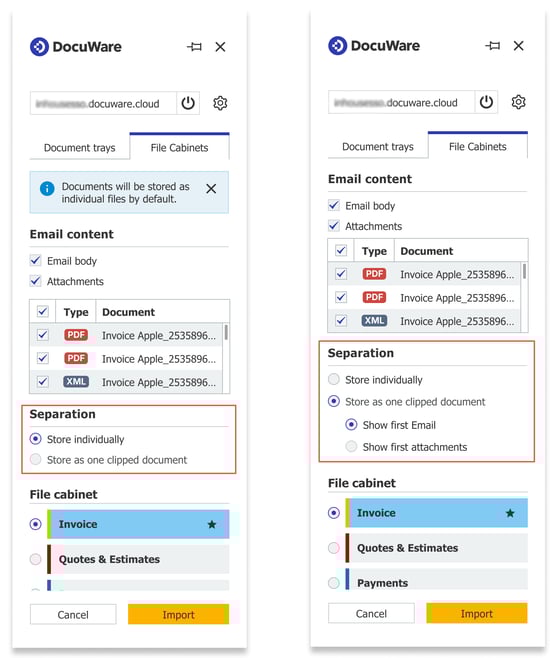
In the new section “Separation,” users can define how the selected email elements, email body and the attachments should be stored in DocuWare: as individual files (left) or as a clipped document (right).
Storing multiple documents: Skip documents and progress overview
When storing email text and attachments as separate files, a new section called “Document Storage Progress” will be displayed. Here, users can see the total number of documents currently being processed and status information for each processed file, as well as having the option to skip storage of a particular attachment.
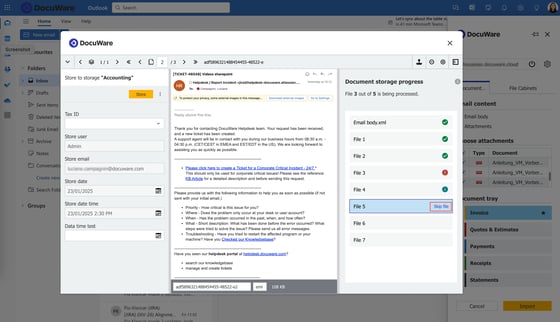
Users now have option to skip a document during processing, for example, if they notice that it is not relevant when viewing the preview in the dialog.
A document’s progress can be labelled with one of three statuses:
- Successfully stored – green checkmark
- Not stored due to an error – red exclamation mark
- Skip – blue info symbol
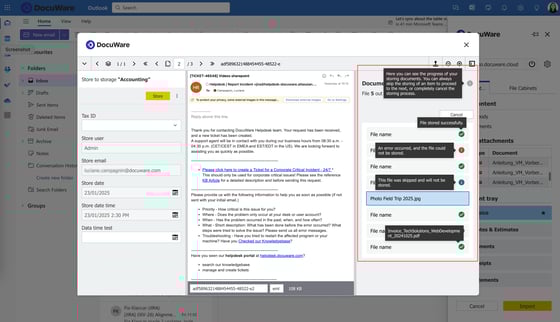
If you hover over the status symbol with the mouse, detailed information will be displayed.
In addition to this status information, a storage report page will be displayed when multiple documents are processed. The detailed report contains a list of the documents stored in DocuWare as well as a status symbol for each document.
Incorporating document processing configuration for more automation
Users can now enhance the storage of their e-invoice attachments with the selection of a document processing configuration. This new option is available all the "folder" type Document Processing configurations that have been configured to process attached e-invoices (in XML and/or PDF format) directly to the selected file cabinet.
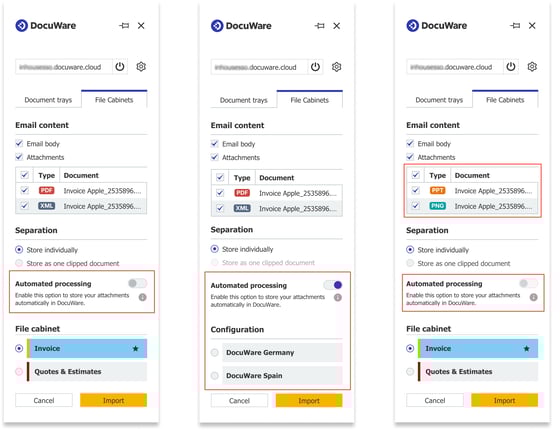
Left: The toggle “Automated Processing” in the storage options area.
Center: When the toggle is activated, the section “File Cabinet” is replaced by “Configuration,” where users can select a configuration for document processing.
Right: The “Automated Processing” toggle is not available when the email attachment’s file format is not supported.
Availability
The new version of the DocuWare Add-in for Microsoft Outlook was made available at the end of June.
Add-in users will receive the latest version automatically – no individual update is required. In addition, they will be informed about the newly added functions through in-app notifications when they open the new version for the first time.
System requirements & limitations
Third-party and cross-site cookies
Following the lates changes in Microsoft and Outlook, it is now necessary to activate cross-site cookies and third-party cookies for the DocuWare Add-in for Microsoft Outlook. If the relevant browser settings are not activated, users cannot use the add-in.
Here is additional browser-specific information:
- Safari: Cookies from other websites are deactivated as standard; users must activate them in order to use the DocuWare Add-in.
- Microsoft Edge: Third-party cookies are activated as standard.
- Google Chrome: Third-party cookies are activated as standard.
SSO authentication not possible if multiple accounts are connected
Users may be unable to log in if they use SSO as the authentication method and have multiple Microsoft accounts registered in their browser. In this case, the DocuWare Add-in for Microsoft Outlook cannot display the list of available accounts, which is required to complete log in. Instead, only a gray page is displayed.
There are two workarounds available to allow users to sign in even if they have multiple Microsoft accounts:
- Use the “normal” log-in method with username and password, or
- Remove all other Microsoft accounts from the browser being used for the add-in, so that only the desired account is available. After this is completed, users will be able to sign in with SSO.