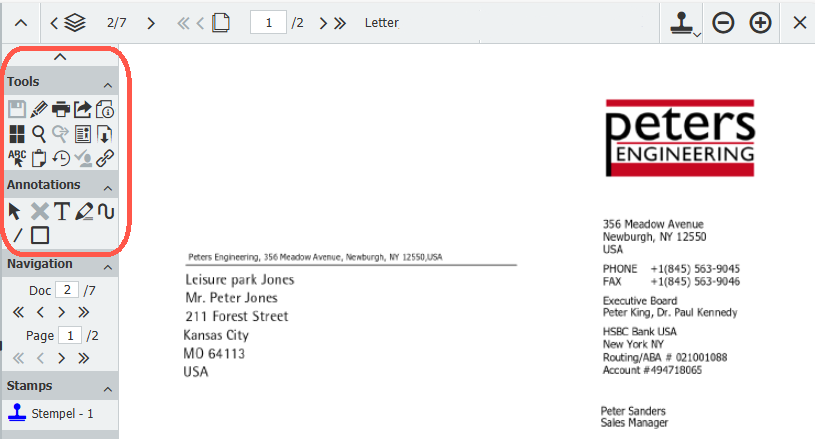
The DocuWare Viewer offers far more than just displaying and scrolling through documents — it’s packed with powerful functionality. We’ll show you the most useful tools and how to make the most of them.
Contents:
- Opening the toolbar and standard functions for efficient collaboration
- Skip the scrolling: full-text search in an open document
- Copy and paste: copy content to the clipboard
- Quick overview of index entries and history
- Mark, annotate, highlight
- Customize the toolbar: your personal setup
Opening the toolbar and standard functions for efficient collaboration
As soon as you open a document in the Viewer, numerous functions are available directly in the toolbar. If the toolbar is hidden, you can open it using the small arrow in the upper-left corner of the viewer.
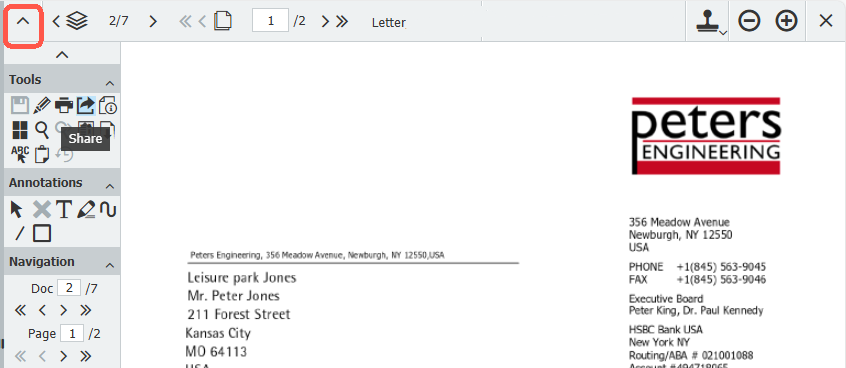
When you hover your mouse over the icons, short descriptions (“tooltips”) appear — ideal for quickly finding your way around.
Key standard tools for collaboration include:
- Print, download or share
- Edit document
- Send request – perfect for initiating follow-up questions or tasks directly from the document
You can also find these functions in the context menu of archived documents – but in the Viewer, they’re immediately visible.
Skip the scrolling: full-text search in an open document
The integrated full-text search saves valuable time, especially when working with longer documents such as contracts, quotes, or multi-page invoices. Instead of scrolling through pages, you can jump directly to all relevant text passages within the document.
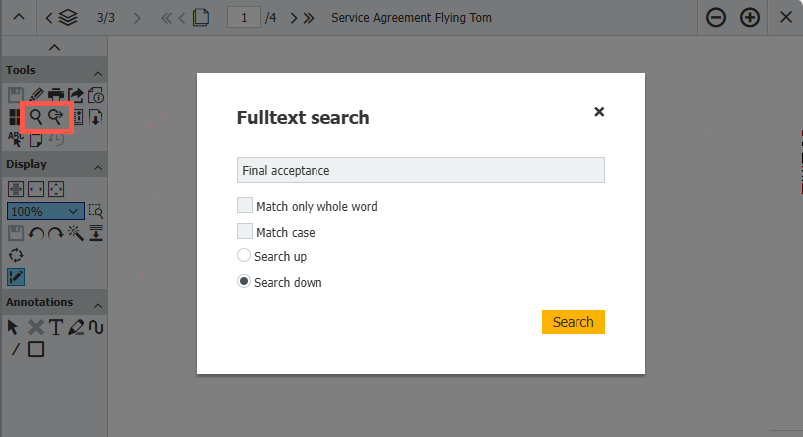
Here's how:
- Click on the magnifying glass icon
- Enter your search term – all matches will be highlighted in color in the document
- Use "Continue full-text search" (magnifying glass with arrow) to quickly navigate from one result to the next
Copy and paste: copy content to the clipboard
Copying item numbers, amounts, or paragraphs from a document into an email is practical and efficient. To use this function, activate the “Copy text to clipboard” tool. Then select the desired content while holding down the mouse button. A message will appear: “Text was copied to the clipboard.”
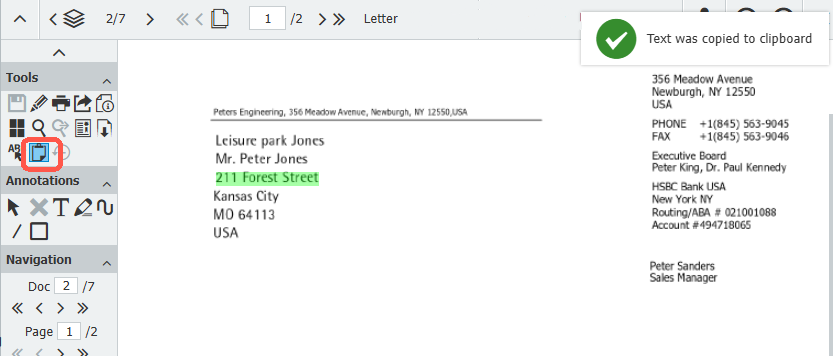
You can then paste the text as usual using Ctrl + V or Paste into any destination - whether you are working in Word, Outlook, Excel, or any other application.
Quick overview of index entries and history
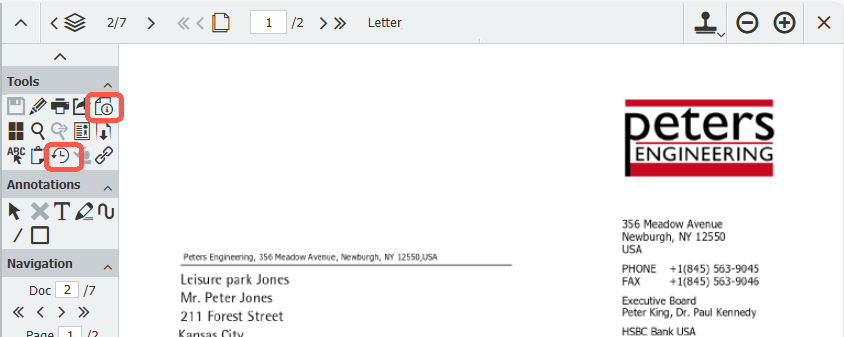
In the Viewer, you don’t just see the document itself. Two additional tools give you access to further information – compact and with just one click:
- Show index entries
Opens a clear overview of all metadata. Perfect for checking how the document was indexed or which index values were captured when it was filed. - History
Shows at a glance who opened, edited, or processed the document within a workflow.
Mark, annotate, highlight
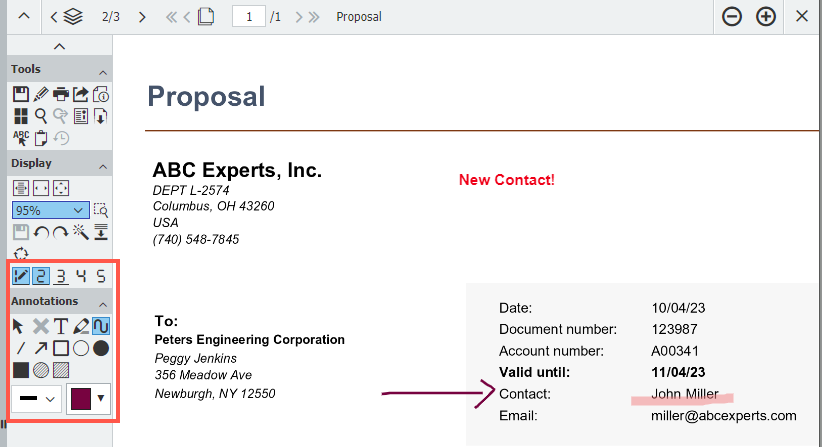
The Viewer also provides a wide range of digital annotation tools – including highlighters, freehand drawing tools, and comment boxes. These are ideal for emphasizing content or adding internal notes.
You can learn more in the article:
Highlighter & Co: Adding digital notes to documents
Customize the viewer toolbar: your personal setup
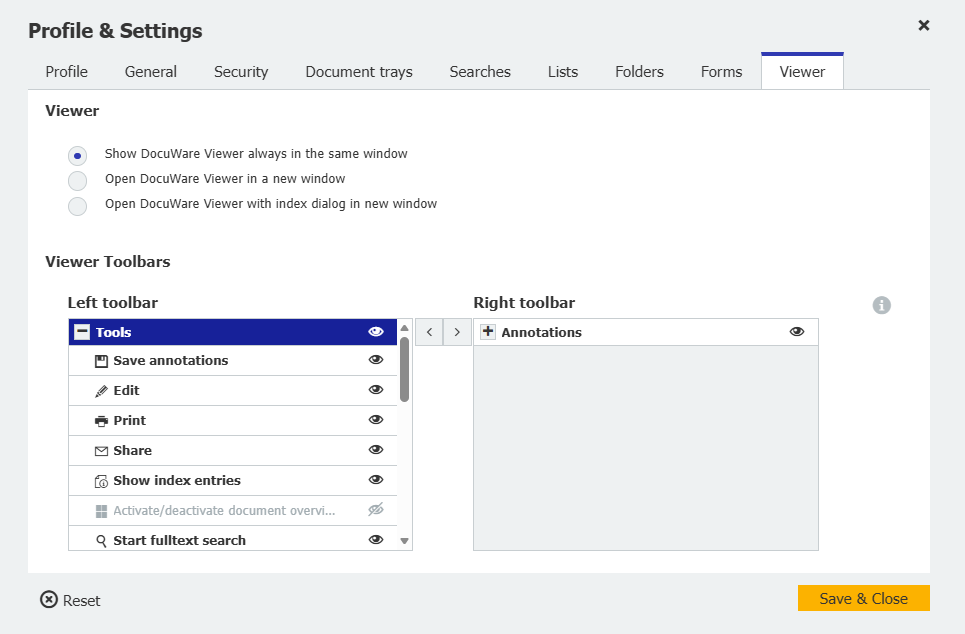
If a particular tool is not displayed for you, you can easily add it via “Profile & Settings”. Likewise, you can hide tools you don’t use, rearrange the order of the sections, position the panel on the right side of the viewer, or split the tools across two toolbars.
You can find detailed instructions in our Knowledge Center: Customizing the Viewer toolbar