


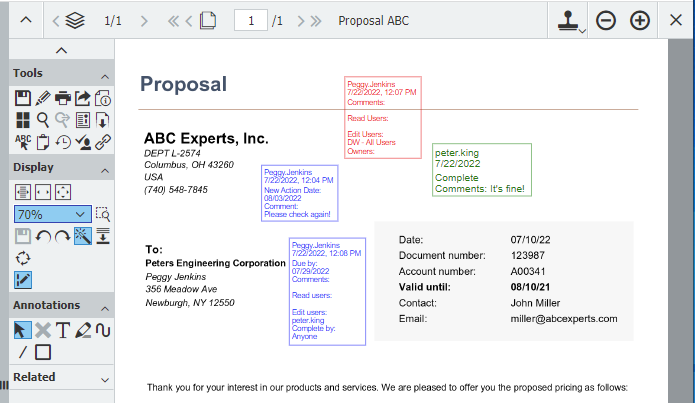
With stamps, you can approve documents in DocuWare, add comments and even change index entries. Simple to set up and precisely tailored, this tool helps you work even more efficiently and save time. Here are the best tips and tricks.
Contents
- Approving documents with a signature stamp
- Changing index entries using stamps
- Easy to set up
- Showing and hiding stamps made easy
With a digital stamp, just like its analog counterpart made of wood and rubber, you place graphic or text elements on a document. This additional information is stored on an annotation layer – essentially a kind of overlay. The actual document content remains unchanged.
Approving documents with a signature stamp
Stamps are ideal for approving items such as invoices for accounting or work instructions for internal publication. There are two options for implementation: a text stamp that automatically includes your username, or an image stamp that displays your handwritten signature.
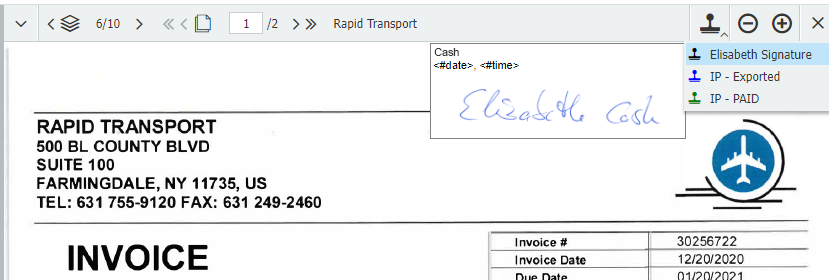
You can find out how to set up such a stamp with a simple signature here.
Changing index entries using stamps
You can also use stamps to add or change the index values of the stamped document. For example, if invoices from different teams need to be approved using different cost centers, you can simply add the cost center via a stamp. Result: the cost center appears as a visible approval note on the invoice in the viewer and is also available as an index entry for further automated invoice processing.
It is best to store a fixed selection list for the cost centers. Instructions for linking a selection list to a stamp can be found here.
Easy to set up
To create a stamp, open the corresponding section in the DocuWare configuration and follow these steps:
- Select a template: Choose one of the predefined stamp templates and customize it as needed.
- Customize design and text: Add your text, select font and font size, and coordinate colors and layout.
- Define usage: Decide where and when the stamp should be used. You can specify that it is automatically applied to certain document types or within defined workflows.
- Finalize and test: Save the stamp and test it to ensure it works as intended.
More information on stamp settings.
Showing and hiding stamps made easy
If a document becomes cluttered due to too many stamps, you can hide them using a simple function and view the document in its original form.
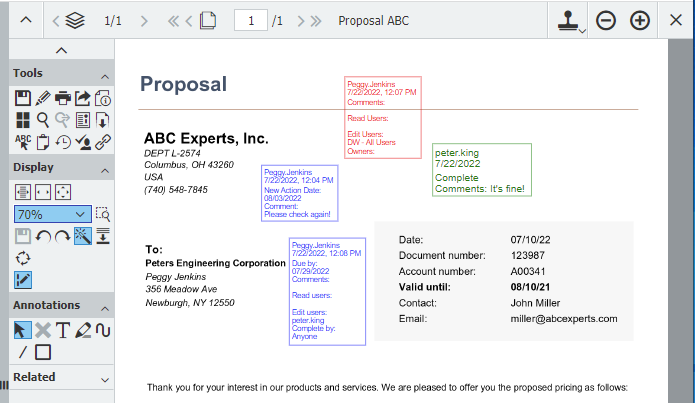
The annotation layer mentioned above is displayed by default so that processing steps can be quickly traced using applied stamps, notes, or highlights. If you want to hide them, use the Show/hide annotation layer tool.
You’ll find detailed descriptions of all these settings in the DocuWare Knowledge Center.