DocuWare is the secure home for your documents. As the manufacturer, we ensure robust security, but some of it lies in your hands as the customer. Are you interested in using the new two-step verification feature or designating certain domains as trusted to enable clickable URLs within DocuWare? Below is an overview of the latest features and updates – essential reading for all administrators.
Contents:
The "Security" component in DocuWare configuration
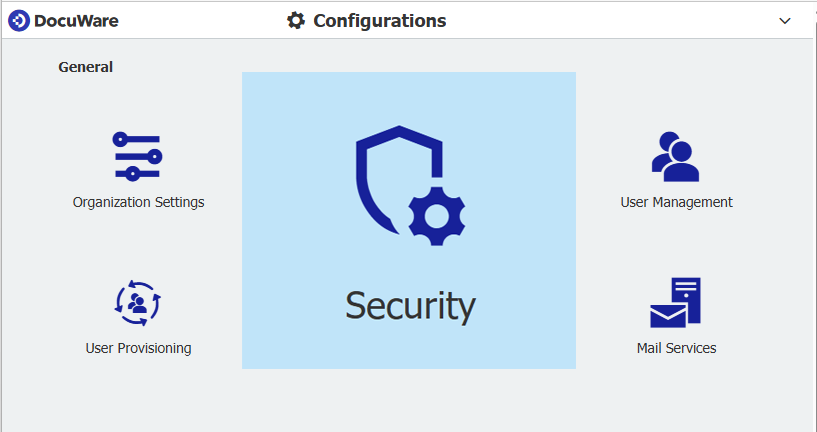
All settings for the security of your entire DocuWare system are managed in DocuWare Configuration. Since version 7.12, all options have been consolidated under the "Security" component. Only users with the "Organization Administrator" role have access to this sensitive area.
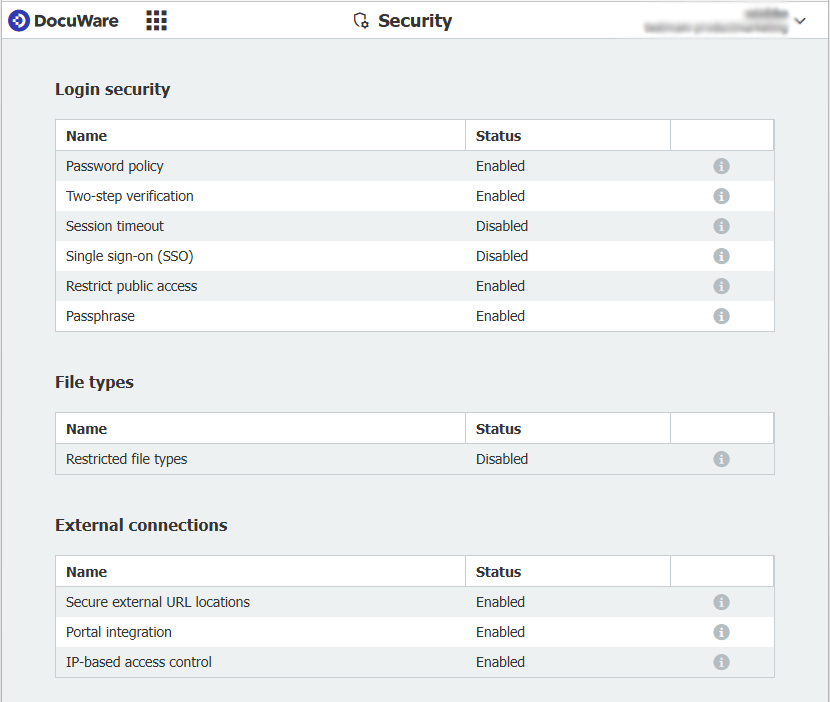 Overview of the security options within DocuWare configuration. Click on the individual items for details.
Sign-in security
How should users be allowed to sign in to DocuWare? Since DocuWare Version 7.13, there’s a new option: two-step verification (2SV for short). Users must enter a six-digit one-time password from an authentication app on their mobile phone each time they sign in. Learn more about 2SV.
It might also be the right time to update the password policy for your DocuWare organization. For all new cloud customers starting in April 2025, we have strengthened the default requirements. Existing customers must adjust the values according to their own security needs.
Single Sign-On Single Sign-On (SSO) is a convenient option for all users because no one needs to remember additional usernames and passwords. DocuWare now supports several types of identity providers for SSO: Microsoft Entra ID, OpenID Connect (OIDC) and Microsoft Active Directory Federation Services (ADFS).
Click here for a detailed description of the sign-in security options, including instructions on integrating identity providers for SSO.
File types
Do you want to prevent certain file types from being archived – for example, to avoid accidental storage of audio files or protect your system against executable files such as .EXE? You can configure these settings here.
To simplify configuration, many file extensions are grouped into predefined lists, such as “Security files” (new since DocuWare version 7.12) or “Movie files.” You can block an entire list, customize it to your needs, or create completely new lists.
External connections
For various integration scenarios, you can specify domains here that you consider trusted.
Trusted external URL addresses: Starting with DocuWare version 7.12, you can whitelist URL domains so that URLs used as index entries become clickable.
As an example, in an invoice file cabinet: Save the link to the posting record from your accounting system together with each invoice. If there are questions, the corresponding posting record can be opened with one click. Learn more
The following two settings apply only to DocuWare Cloud and were located under “Central Gateway” before version 7.13:
Portal integration
Add domains here that should be allowed to access DocuWare resources in your organization. For example, if a DocuWare search dialog is embedded into your web portal so customers can search for documents, your portal’s domain must be listed here.
IP-based access control
To control which devices may access DocuWare Cloud services, enter specific IP addresses or IP ranges in this section. Important to know:
As long as no IP address is listed, all IP addresses can access your DocuWare Cloud organization.
Our request: Please take the time to familiarize yourself with all security-related options and configure them thoughtfully and according to your organization’s needs. Protecting your data and documents is our top priority – but ensuring their security requires also your active involvement.