


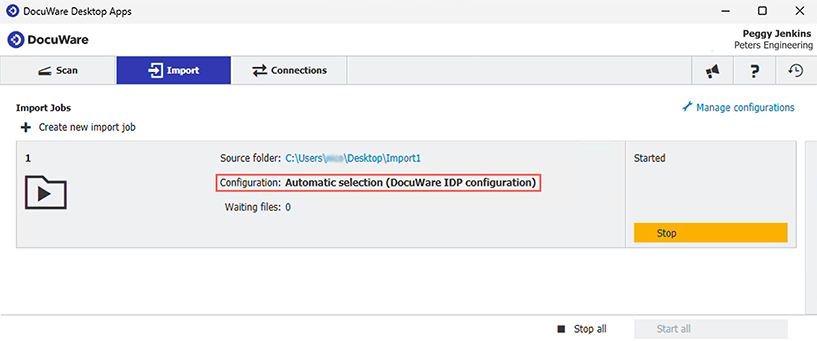
Do you use DocuWare Scan and DocuWare Import to scan paper invoices or import PDFs? Documents from these sources can now also be fully processed and extracted automatically with DocuWare IDP. A new monitoring feature keeps you informed about the status of each job.
Contents:
- DocuWare IDP for scanned paper invoices and imported PDFs
- How to enable DocuWare IDP in the Desktop Apps
- Monitoring job status
DocuWare IDP for scanned paper invoices and imported PDFs
You can now use DocuWare Intelligent Document Processing (IDP) not only for emailed documents, but also for those processed through Desktop Apps. This gives you the full range of IDP features for your Desktop App jobs — from splitting to classification and extraction, including handwriting recognition.
To use your IDP configurations within the Desktop Apps, you first need to set them up in DocuWare Configuration under DocuWare IDP.
How to enable DocuWare IDP in the Desktop Apps
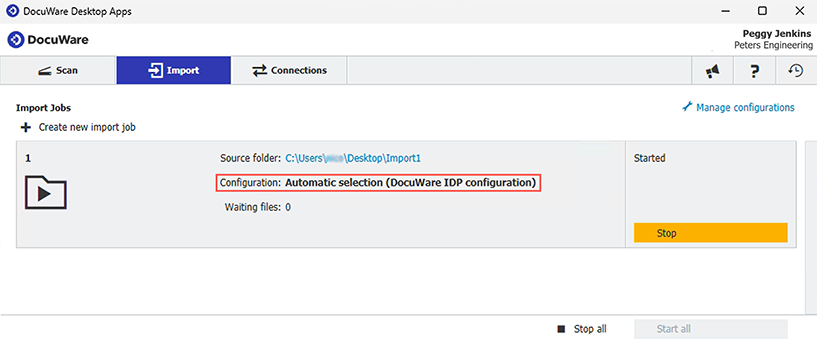
Under Scan or Import, you have two configuration options:
- If the document should first be classified and the best extraction model selected based on that result, choose "Automatic selection (DocuWare IDP configuration)".
- If the document doesn’t require classification, you can select any configuration whose name ends with (IDP).
Monitoring job status
In the new IDP Monitoring section of DocuWare Configuration, you can easily track the processing status of documents from Scan and Import. If a job fails, you can restart it using the Retry button.
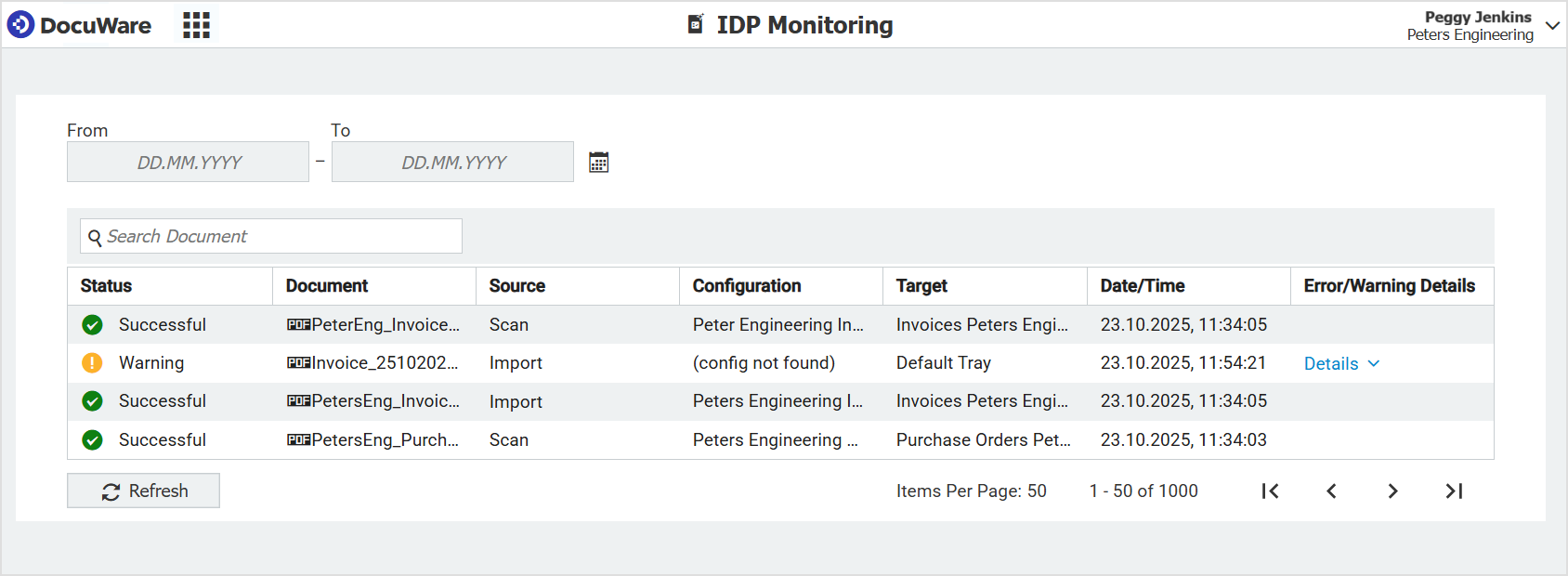
IDP Monitoring is displayed for all cloud users running DocuWare version 7.13 or higher and using DocuWare IDP. Currently, up to 1,000 rows are shown, with each row representing one job. A resettable date filter and a filename search bar allow you to refine the view. Users can only see their own jobs in the monitoring area, not those of the entire organization (no special functional rights are required).
These new features are initially available only to DocuWare Cloud users running version 7.13 or later and holding a DocuWare IDP license.
You may need to update your Desktop Apps. To do so, click the yellow DocuWare Desktop Apps button in the Windows tray menu. For more information on setting up IDP with the Desktop Apps, visit the DocuWare Knowledge Center.