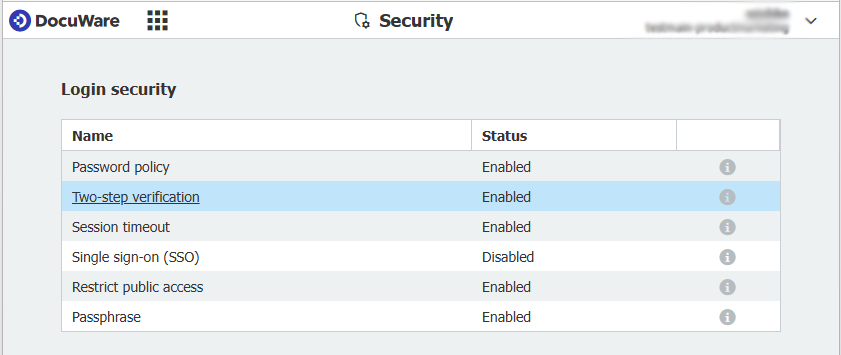
With two-step verification, you add an extra layer of security to your DocuWare system. Each time users sign in, they must enter a six-digit one-time password generated by an authentication app on their mobile device.
Contents:
- Two-step verification (2SV)
- For admins: How to activate 2SV for your DocuWare organization
- For users: How to activate 2SV for yourself
- 2SV in user administration
Two-step verification (2SV)
You’re likely familiar with this process from online banking: before completing a transaction, you have to confirm it for security purposes via an additional app or password – essentially verifying yourself twice.
In DocuWare, two-step verification (2SV) has been available for sign-in since Version 7.13, released in fall 2025. It significantly increases security by ensuring that only authorized users can sign in to your DocuWare system – and that everyone uses their own account. Upon login, users receive a unique six-digit one-time password via an authentication app on their mobile device, which they must enter in the DocuWare sign-in window to complete the process.
For admins: How to activate 2SV for your DocuWare organization
First, an organization administrator must enable two-step verification for the DocuWare organization. This is done in the “Security” section of the DocuWare configuration.
Important to know: the increased security level is implemented as an opt-in model. Enabling it at the organizational level does not automatically require users to use two-step authentication; it simply allows them to activate it for their own accounts. More on this in the next section.
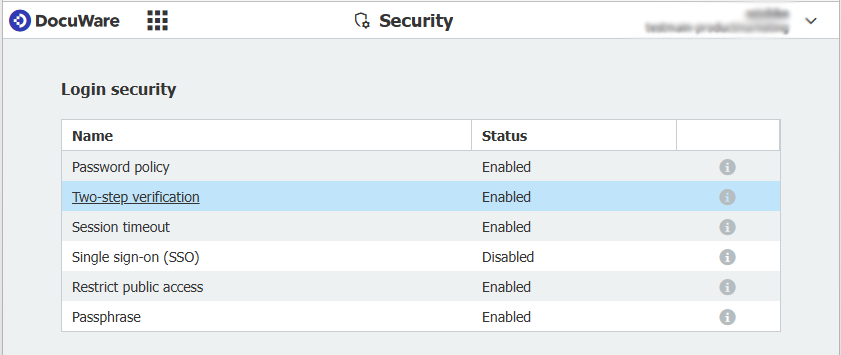
In addition, you should provide your users with an authentication app for their mobile devices. DocuWare supports the most common apps, including Microsoft Authenticator, Google Authenticator, and Duo Mobile.
For users: How to activate 2SV for yourself
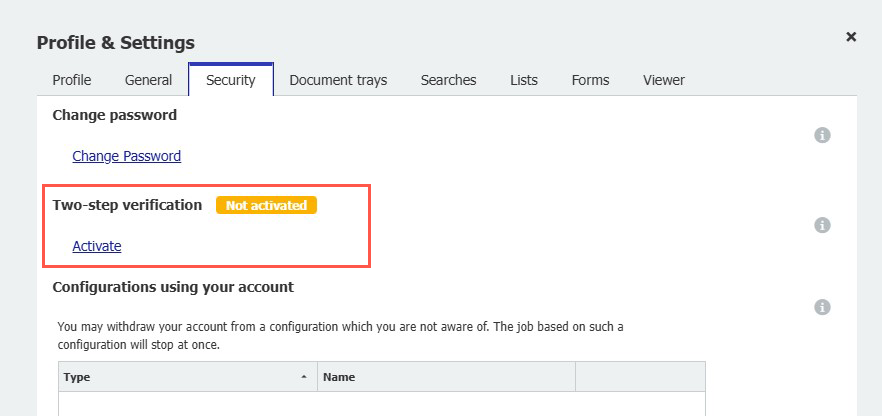
Individual users activate two-step authentication for their own account in the "Security" tab under "Profile & Settings":
2SV in user administration
With regard to two-step verification, organization administrators have the following two new options in user management:
- In the user list, a new 2SV column shows which users have enabled two-step verification.
- For individual users, administrators can disable two-step verification in the General tab. This ensures that users can still sign in to DocuWare if they have lost their mobile device with the authentication app.
More information about two-factor authentication can be found in the related documentation.