


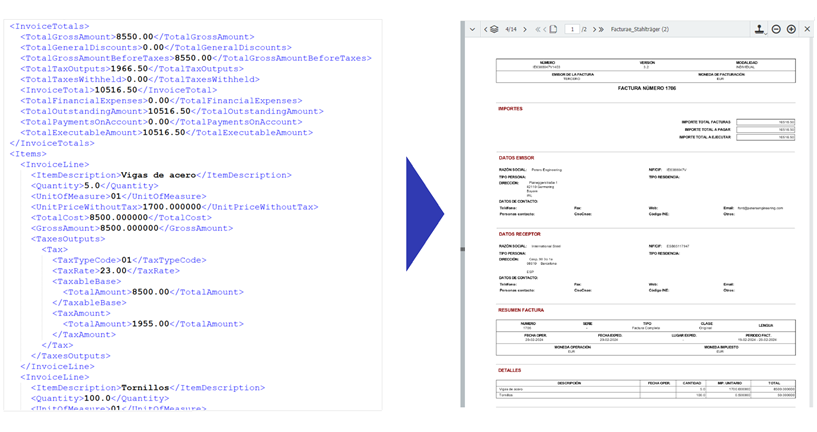
When you’re setting up electronic invoice processing, DocuWare offers several viewing options for the sample document. Here’s how to get the most out of them.
Contents
- From code to readable invoice
- Document view – just like in the Web Client
- Metadata view: The workspace for indexing the document
Electronic invoices are typically in XML file format. DocuWare converts this machine-readable format into a user-friendly version that looks like a standard invoice.
From code to readable invoice
If you work in accounting, for example, and open e-invoices from your document tray or file cabinet in the Web Client, DocuWare automatically converts the XML code into a human-readable version – just like a conventional invoice. This lets you visually review the invoice data.
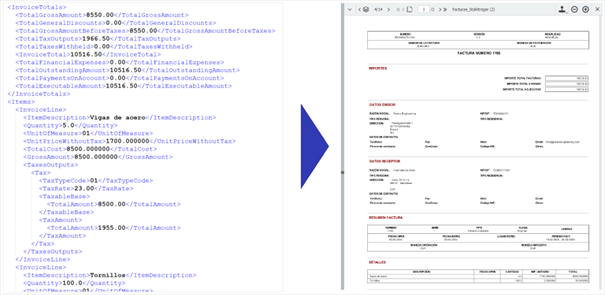
This readable view of the XML data is also available when configuring document processing. DocuWare offers two different views for this: "Document" and "Metadata".
Document view – just like in the Web Client
When creating a configuration for processing e-invoices, upload a sample document and select Document view to get a quick overview of the data in the sample document.
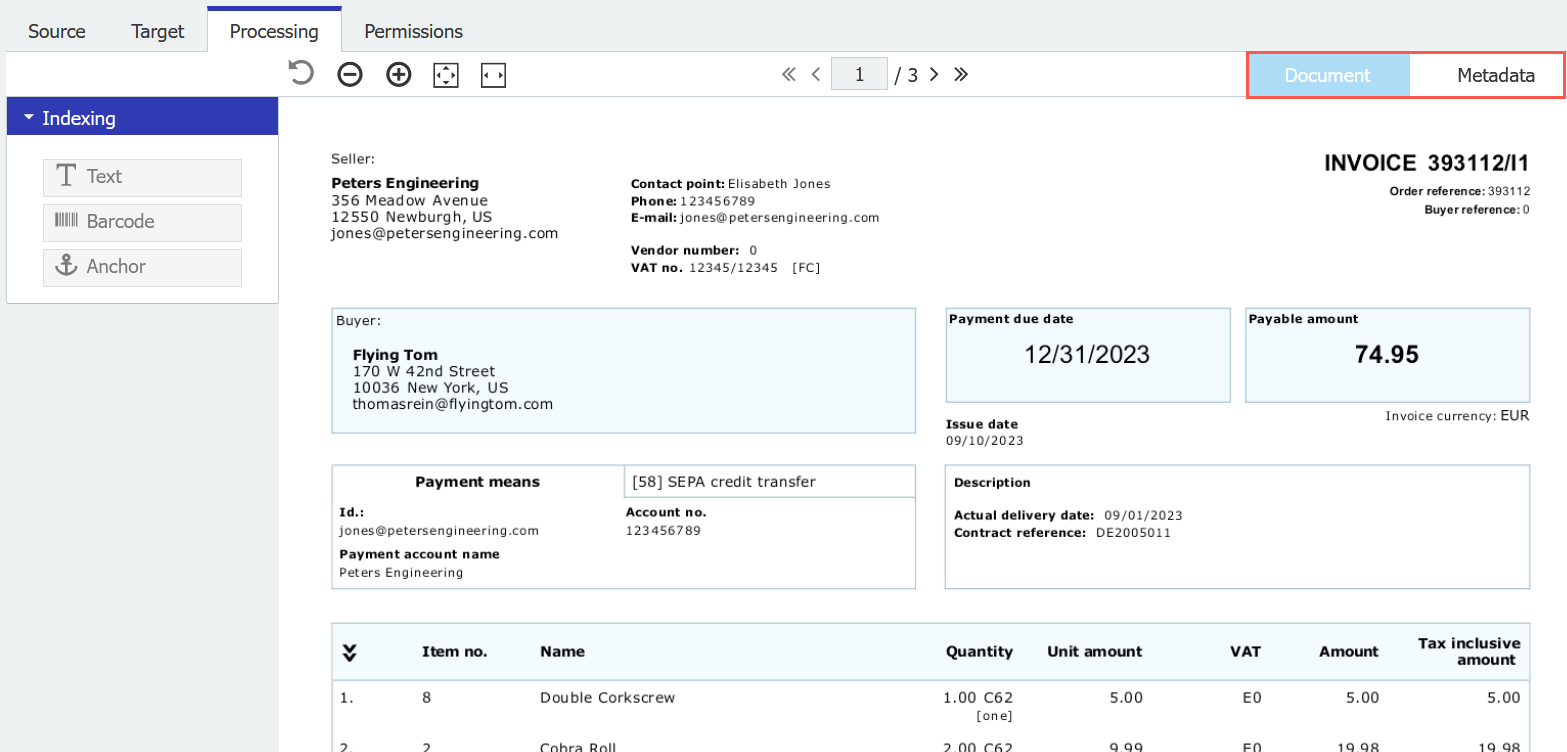
This clear, human-readable format helps you verify whether the XML file includes all necessary data and is suitable to use as a sample document. Click on the tabs to switch between the views.
Metadata view – the workspace for indexing the document
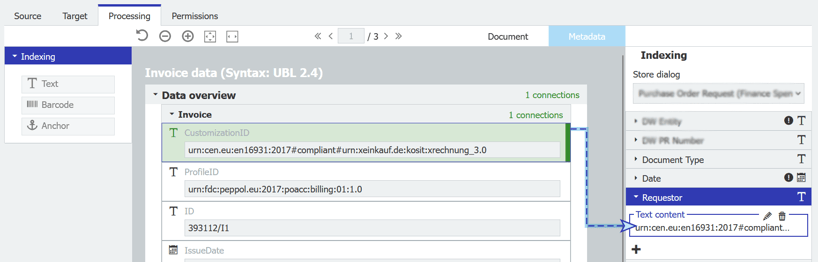
In Metadata view, all the document information is displayed in a table format. Here, you can select the relevant data and map it to DocuWare’s index fields for accurate indexing.
Also check out how to customize the DocuWare Viewer for your personal workflow.