


Switching to the web-based Workflow Designer offers many advantages. But what about the existing workflows you created in the previous Designer? We'll show you how to migrate your existing workflows to the new Designer quickly and easily. And we'll tell you when it's actually necessary.
Contents
- When migration is relevant for you
- How migration works
- Automatic version selection during migration
- Keeping track: Filtering workflows
The new, web-based Workflow Designer in DocuWare Configuration includes a migration feature for workflows that you originally created in the Workflow Designer Desktop App.
When migration is relevant for you
If you already create all your workflows directly in the web-based Workflow Designer, you don’t need to do anything. (The functionality is currently available for DocuWare Cloud and will be coming to on-premises DocuWare installations soon.)
If, however, you’re still using the legacy Workflow Designer as a Desktop App, migrating your existing workflows is both advisable and necessary if you want to continue editing and developing them in future. Watch for any notifications about potential breaking changes during the migration.
As a general rule, all workflows you have created using the Desktop App will remain available to you even if DocuWare eventually stops supporting the Desktop App. This also applies to unmigrated workflows. The migration, which as mentioned is only needed for edit purposes, will be possible for these workflows in the new designer at any point in time.
How migration works
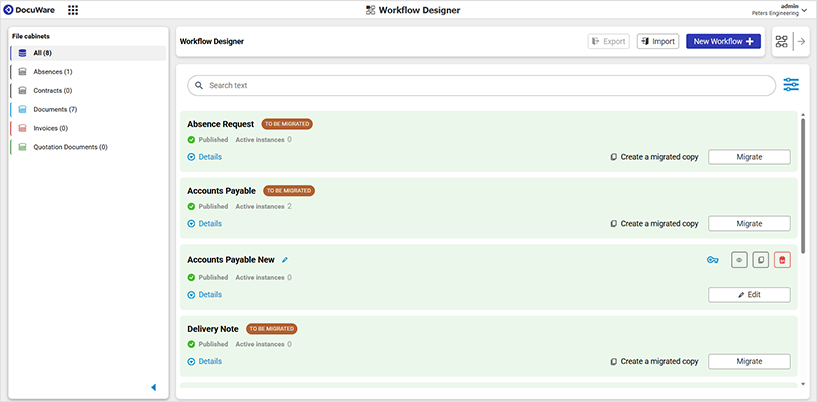
Workflows originating from the Desktop App can be identified in the new designer's dashboard by the "Migrate" button and also by the tag "To be migrated".
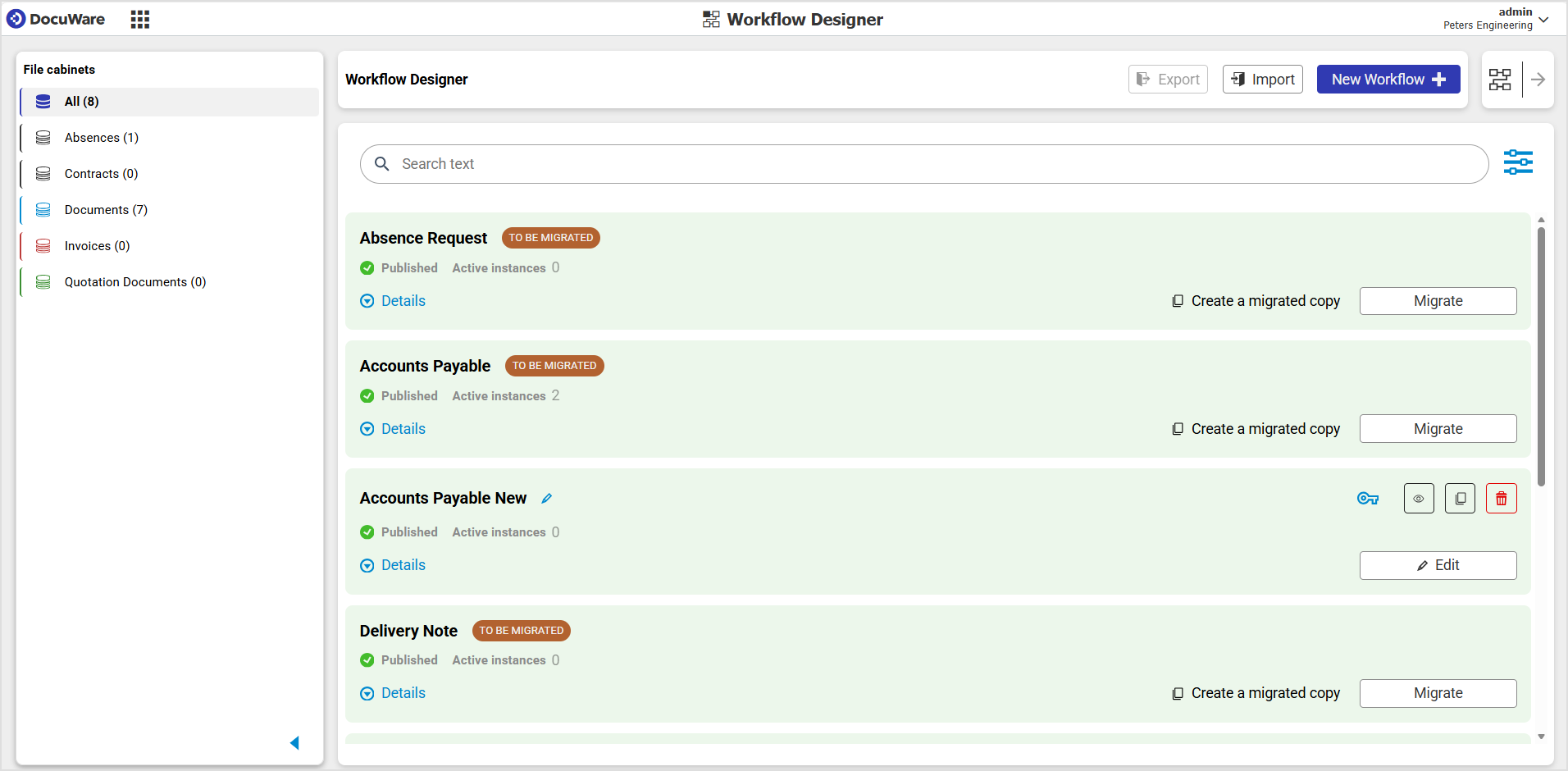
There are two migration options:
Option 1: Migrate to continue editing
Use this option when you want to continue developing an existing workflow in the new designer.
To do so, click "Migrate" on the relevant workflow. The workflow will then be migrated and a new version is created into the web-based designer. The currently published version of your workflow remains unchanged.
Option 2: Create migrated copy
This option is ideal if you want to test a workflow without altering the original.
A copy of your workflow is created in the web-based designer – your original workflow in the Desktop App remains untouched and can be used for testing or comparison. The copy is clearly labeled as such in its name.
Automatic version selection during migration
During the migration process, DocuWare automatically ensures that the most relevant version of your workflow is transferred:
- For published workflows, the published version is migrated.
- For unpublished workflows, the latest draft version is selected.
Keeping track: Filtering workflows
In the web-based Workflow Designer dashboard, you can filter your workflows by migration status. This makes it easy to track which workflows still need to be migrated and which have already been successfully transferred.