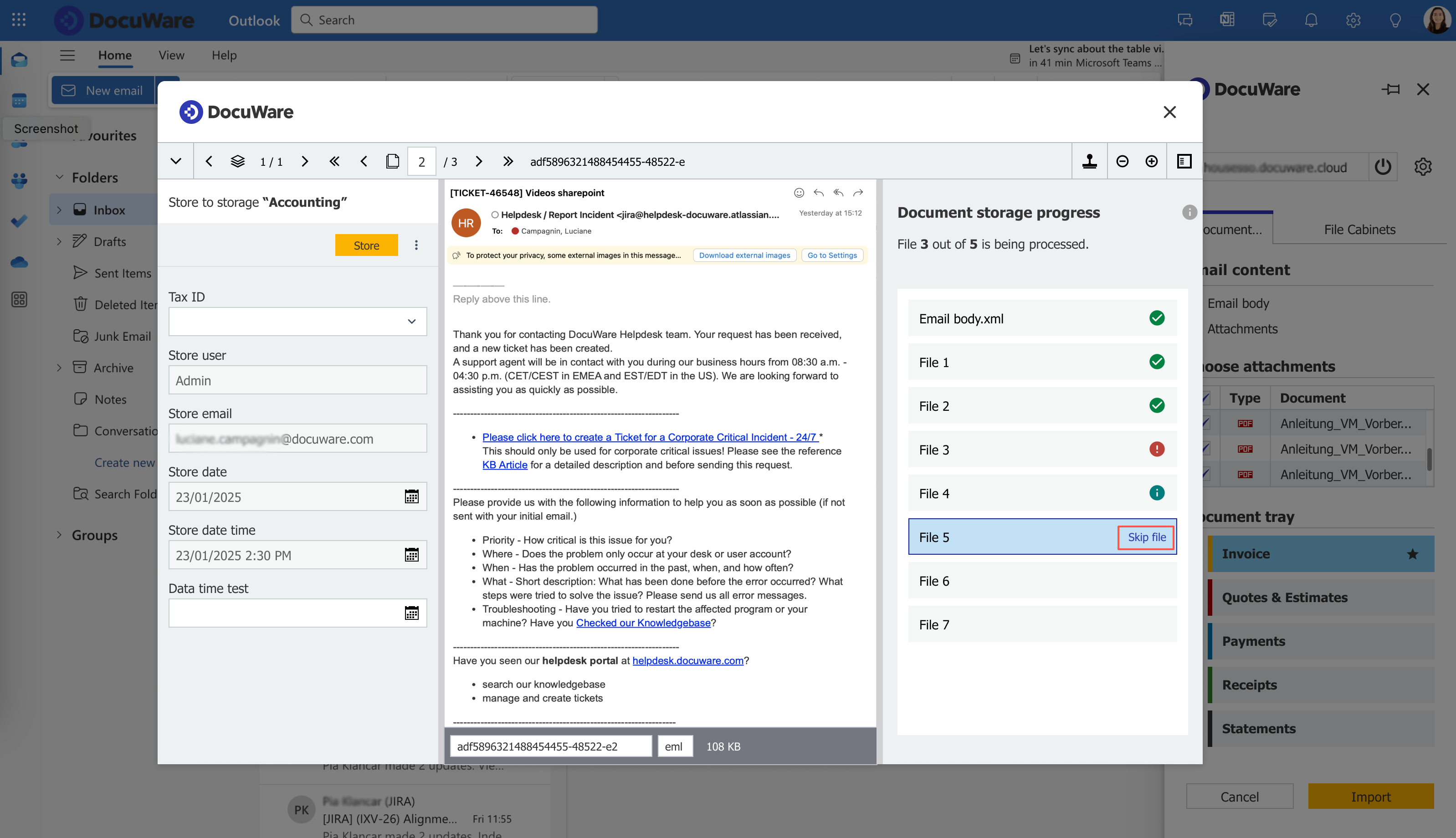
The latest update to the DocuWare Add-in for Microsoft Outlook offers more options and a better user experience for archiving emails with attachments, such as invoices. You can include a Document Processing configuration for automated storage and you get a clear report on the processing success. Read more about the new features.
Contents:
- Emails with attachments: Store individually or as one clipped document
- Archiving multiple documents: Skip document and progress overview
- Include Document Processing configuration for automated processing
- Availability
- System Requirements & Limitations
- DocuWare Add-in for Microsoft Outlook vs DocuWare Connect to Outlook
Emails with attachments: Store individually or as one clipped document
Unlike in the past, when emails and attachments could only be stored as clipped documents, it’s now possible for you to define how your selected documents (email body and/or attachments) will be stored in DocuWare: as individual documents which is the preselected option, or as one clipped document. In the second case, it’s also possible to define the order within the clipped document. For invoices received per email, you might select to show the attached invoice first as it contains the more relevant information.
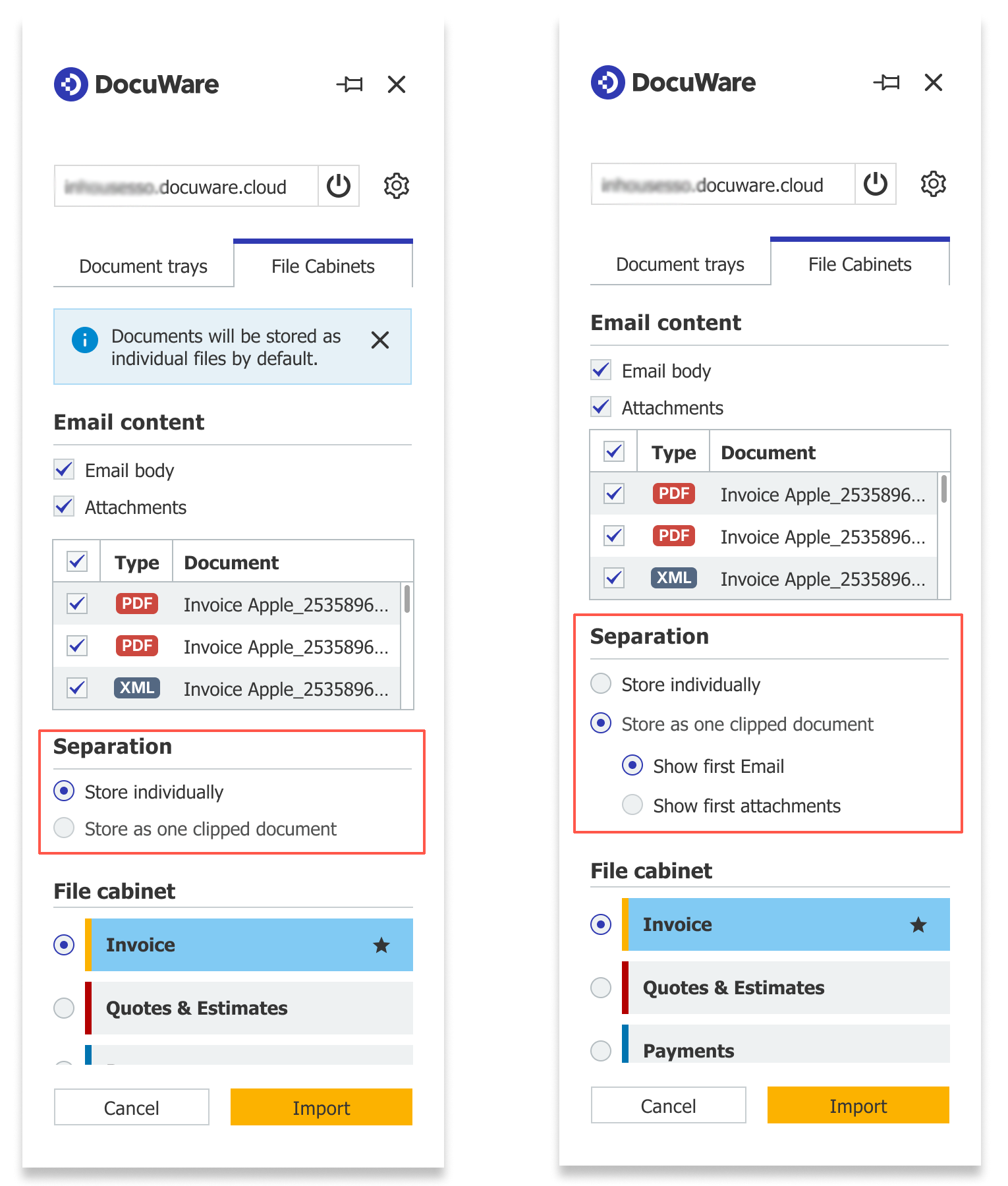
In the new “Separation” section, you define whether to store the selected email elements, body and attachments, as individual files in DocuWare (left) or to store them as a clipped document (right).
Archiving multiple documents: Skip document and progress overview
In case you select to archive email body and attachments as separate files, a new section called “Document storage progress” is shown in the store dialog. It provides the total number of documents that are being processed, status information for each processed file, and the option to skip the storage of a specific attachment.
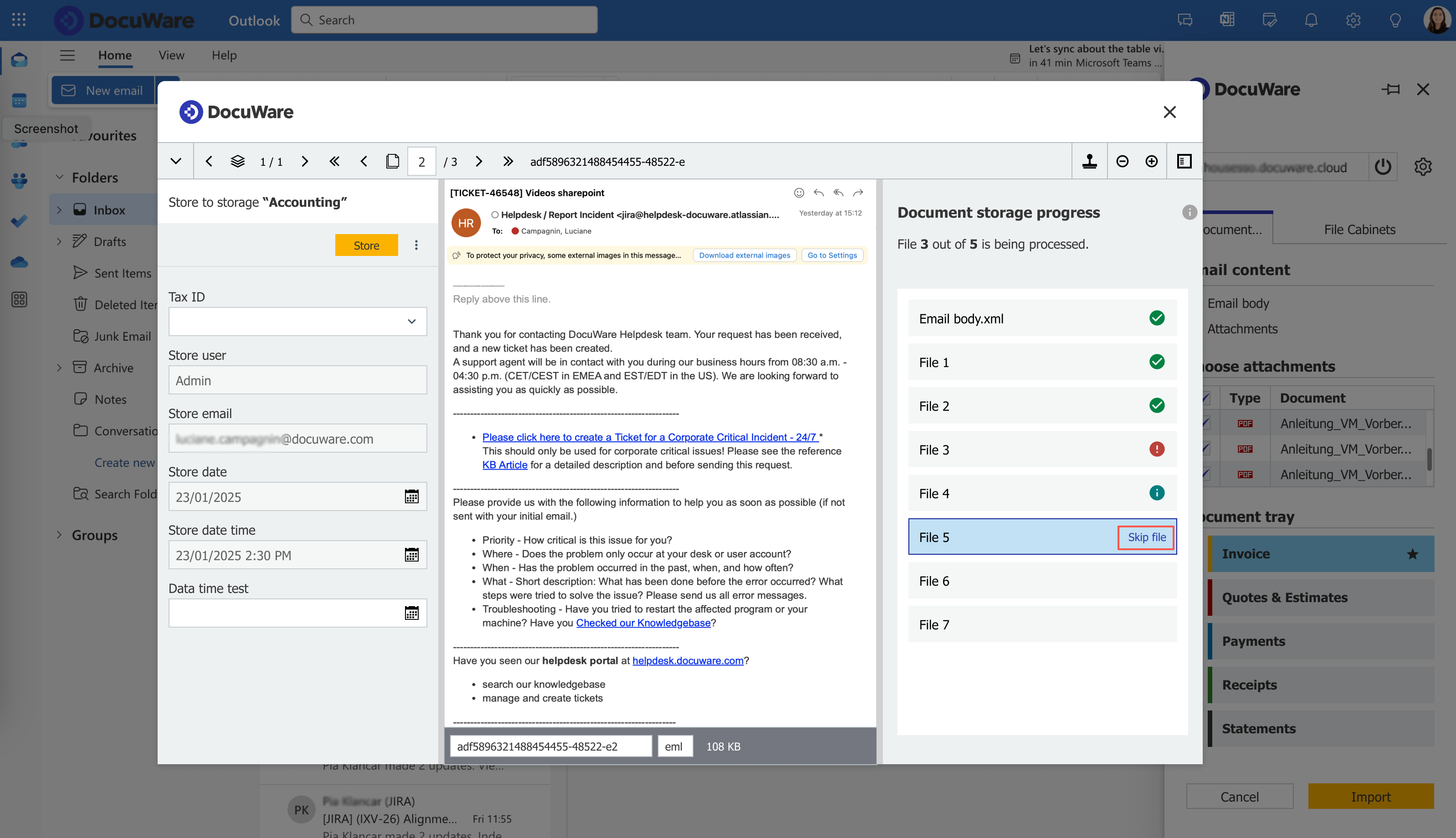 You now have the option to skip the storage of a specific document if you identify that it’s not required to be stored while viewing the preview in the store dialog.
The three status options for the document storage progress are:
- Successfully stored – green checkbox
- Not stored due to an error – red exclamation mark
- Skipped – blue info icon
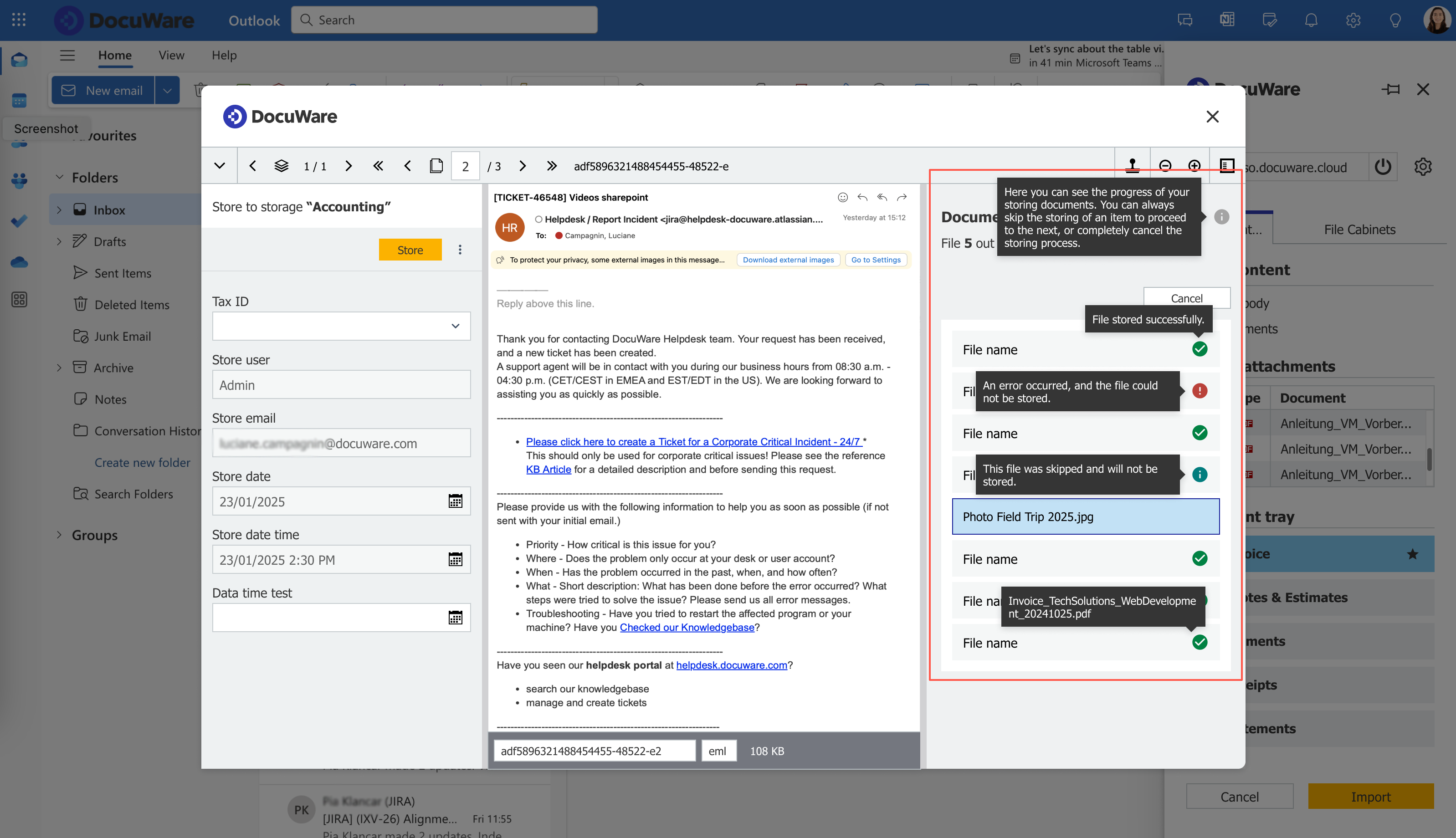 When hovering over a status icon, a more detailed message is shown
Include Document Processing configuration for automated processing
You can now enhance the storage of their e-invoice attachments with the selection of a document processing configuration. This new option is available for all the "Folder" type Document Processing configurations that have been configured to process attached e-invoices (in XML and/or PDF format) directly to the selected file cabinet.
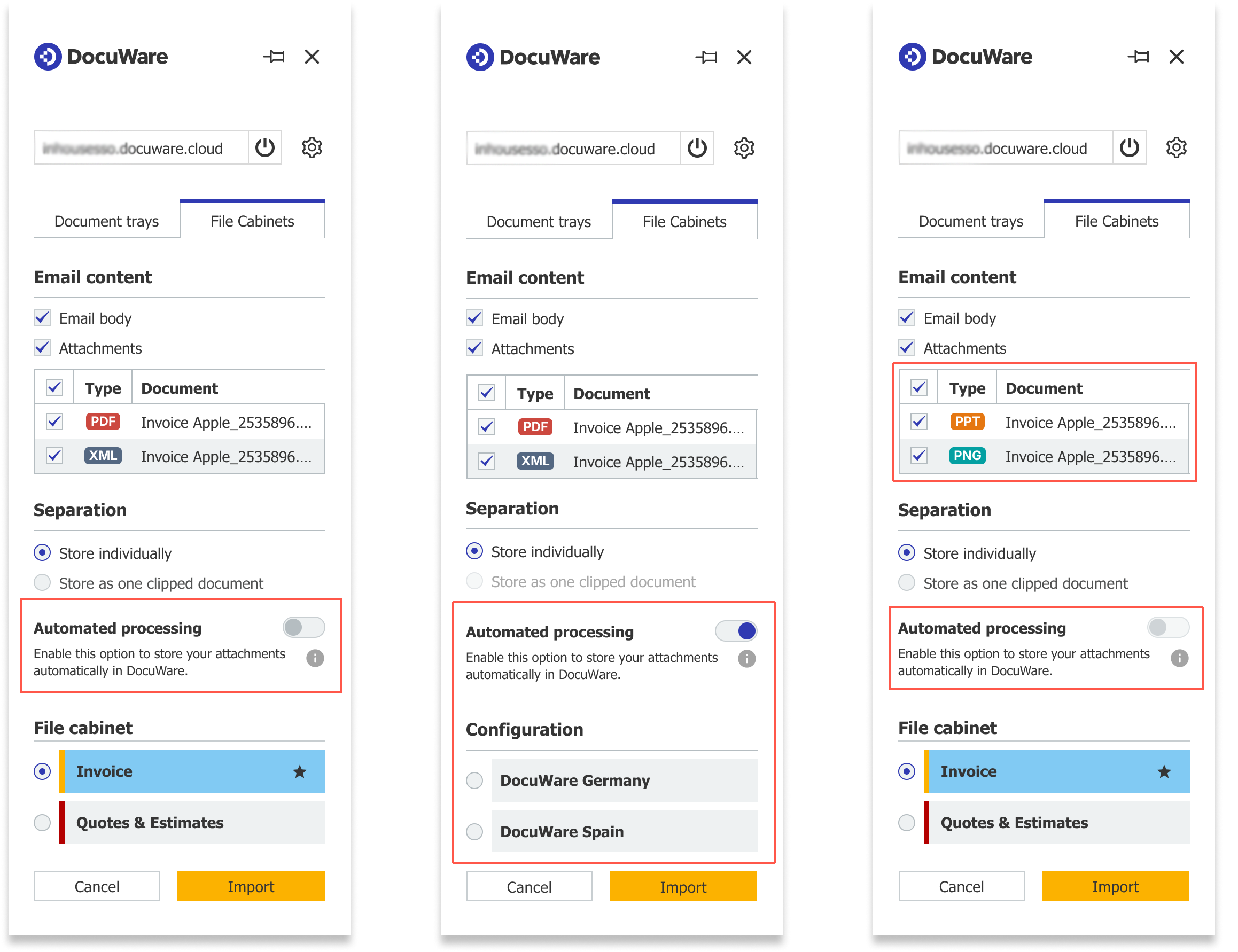 Left: The “Automated processing” toggle within the storage section.
Middle: When the toggle is on, the section “File cabinet” is replaced by “Configuration” where you select the Document Processing configuration to be used.
Right: The “Automated processing” toggle is unavailable if the email attachments are not in the supported format.
Availability
The new version of the DocuWare Add-in for Microsoft Outlook is already available since end of June.
You will get the latest version automatically – no individual update required. In addition, when accessing the new version for the first time, you will get in-app notifications about the added functionality.
System Requirements & Limitations
Third-party and cross-site cookies
After recent changes in Microsoft and Outlook configuration, the DocuWare Add-in for Microsoft Outlook requires the tracking of cross-site and third-party cookies to be enabled. When the relevant settings on the web browser are not enabled, users will not be allowed to use the Add-in.
More specifically, the list below includes some information for each browser:
- Safari: Cross-site cookies are disabled by default; users have to enable them to use the DocuWare Add-in.
- Microsoft Edge: Third-party cookies are enabled by default.
- Google Chrome: Third-party cookies are enabled by default.
SSO login failure when multiple accounts are connected
Users' login could fail when the SSO is used as an authentication method, and the user has multiple Microsoft accounts registered in their browser. In that case, the DocuWare Add-in for Microsoft Outlook cannot show the list of available accounts to complete the login process, and a grey page will come up for the user.
There are two workarounds to proceed with the login when users have multiple Microsoft accounts:- Users can use the normal login (username & password), or,
- Users can remove multiple Microsoft accounts from their browser, so they will have only one available. After that, users can use the SSO to complete the login.
DocuWare Add-in for Microsoft Outlook vs DocuWare Connect to Outlook
DocuWare offers two different tools to integrate with Microsoft Outlook: the above-described Add-in and Connect to Outlook. Here is who should use which one.
For DocuWare Cloud
Both integration options are available for DocuWare Cloud customers.
If you are using the Microsoft Outlook desktop version (Classic Outlook), Connect to Outlook is the appropriate integration tool.
If you are using Microsoft Outlook in a web/online version, the DocuWare Add-in for Microsoft Outlook is the right tool for you.
For DocuWare on-premises customers
DocuWare’s Connect to Outlook Desktop App is available as an add-on module for on-premises systems to integrate with the Outlook desktop version. The DocuWare Add-in for Microsoft Outlook is only planned for on-premises customers but is not yet available. That’s why we recommend our on-premises customers to continue using Microsoft’s desktop version (Classic Outlook). Please also read the important information about Microsoft's transition period and your opt-out option.