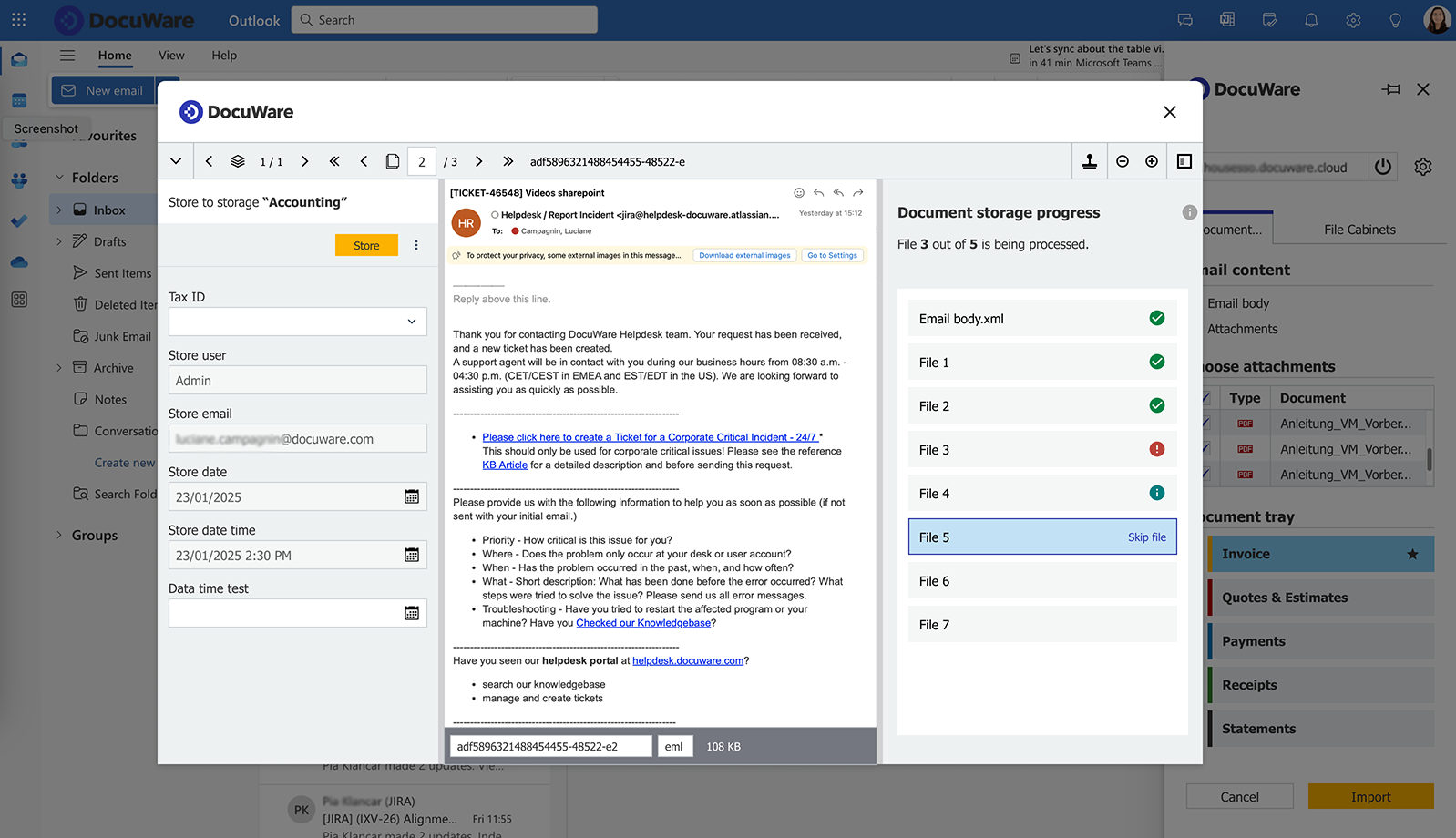
Good news for all DocuWare on-premises customers: The Outlook Add-in, which offers powerful features for easily archiving emails from the new Outlook, is now available for your systems. It allows to seamlessly connect the web/online version of Outlook to your DocuWare account.
Content:
Outlook Add-in: functionality overview
Regardless of the underlying DocuWare system, cloud or on-premises, the Outlook add-in has the same functionality. Here is an overview of the most important features:
- Storage destination: Emails can be stored in any DocuWare tray or file cabinet accessible to the user.
- Emails with attachments: Select which attachments should be transferred to DocuWare and their order within a clipped document. Alternatively, archive the email and attachments as individual documents.
- Indexing: You can index your emails manually, use store dialogs with pre-filled fields, or integrate document processing configurations for a higher degree of automation.
To connect Microsoft Outlook to a DocuWare on-premises system, the additional “DocuWare Connect to Outlook” license is still required. If you have been using the Connect to Outlook desktop app, you can also use the new Outlook add-in without additional licenses.
The Knowledge Center provides a complete feature comparison between Connect to Outlook and the Outlook Add-in.
Release plan: two phases
- Phase 1 – manual installation: In the current first phase, the Outlook add-in must be installed manually. We therefore recommend that only experienced system administrators perform the installation themselves. For assistance, please contact your certified DocuWare partner or DocuWare Professional Services.
- Phase 2 - streamlined installation: The installation process will be simplified, reducing manual steps and making it easier for system administrators to deploy the DocuWare for Outlook Add-in.
Installation and roll-out
To ensure a smooth rollout of the Outlook Add-in for on-premises environments please follow these steps carefully:
- System preparation: Ensure the DocuWare on-premises system is updated to the latest version of 7.13 and review all prerequisites before beginning the installation.
- Follow the detailed installation guide: Access the Outlook Add-In installation guide for on-premises systems and follow step-by-step the instructions that guide you through the configuration and installation process.
- Setup and roll-out to the entire organization: After installation, follow the recommended setup and roll-out process to ensure the DocuWare for Outlook Add-in is configured correctly for your organization. Detailed guidance is available in our Set Up DocuWare for Outlook article.