Managing invoices and document data in DocuWare just got even more efficient. The latest DocuWare IDP update introduces line item-level matching within the master data matching feature for improved accuracy and streamlined processes. This new capability helps identify mismatches, ensures greater data reliability and makes processing faster than ever. Learn where to find line item matching, how to use it and the value it brings to daily document processing.
Content
- What is line item matching and why it matters
- How to use line item matching
- What’s new with line item matching
- Where to find it and test line item matching
What is line item matching and why it matters
Line item matching in DocuWare IDP lets you automatically compare every individual entry in an invoice or purchase order, including product descriptions, unit prices, quantities and line totals, against your master data such as purchase order records or item catalogs. Instead of checking only summary fields, this feature validates every detail at the line level. This level of control and automation means mismatches are caught and flagged for review efficiently and helps keep line item data consistent for downstream processing such as ERP export. It efficiently flags any mismatched or missing data, offers options to fill inaccurate fields with trusted information and ensures that every item processed is reliable for downstream tasks. By automating these checks, you can reduce manual reviews, minimize errors and strengthen data consistency across business processes.
How to use line item matching
Just include line item fields in your rule set to enable the function. Getting started is simple:
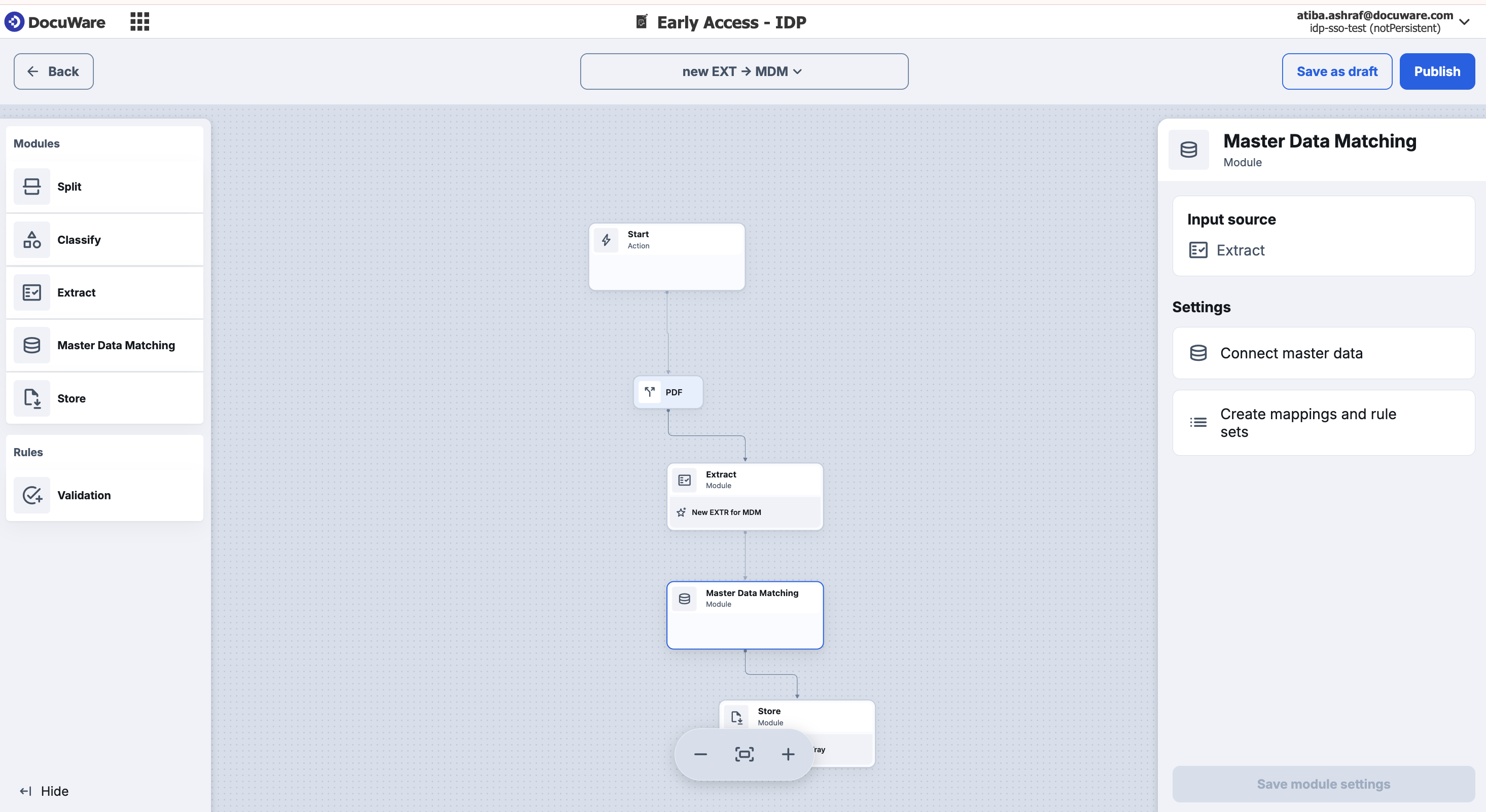
- In DocuWare Early Access - IDP, open IDP Flows and select the flow. In the IDP Configurator, connect the extraction agent to the Master Data Matching node.
- Click Add Master Data Source and upload the reference data as a CSV file or select your DocuWare Cloud Select List, for example a delivery note or purchase order list with item description, unit price, quantity and line amount in each row. Connect it to the extraction agent.
- Under Mappings, map each line item field to a master data column, for example Description ↔ Description, Per Price ↔ Unit Price, Quantity ↔ Ordered Qty, Total Amount of Line ↔ Line Amount.
- Under Rule Sets, click Add rule set, select the master data source and add a matching rule:
- Mapping: the line item field to match on, for example Description.
- Operator: for example Fuzzy String Match.
- Threshold: the minimum similarity for a match, for example 50%. Optionally set Case Sensitive and Ignore Spaces. - Under What happens if there is a match?, click Add Action and select desired action for example: Replace With Master Data. Choose the master data column and the line item field to overwrite. Repeat this for each field to update.
- Under What should happen if there is no match?, click Add Action and select one or more actions for each line item field. For example: Flag Field as Error, Flag Field as Verified, Clear field content, Mark Document as Verified, or Write note into field notes (with a message text).
- Click Save.
- Under Test Your Rules on Input Data, enter line item values under Manual Input, or upload a sample file under File Upload. Then click Test Rule Sets and check the result for each line item field.
- Publish the flow. Processed documents show the line item results in Processing History.
During processing, the system provides immediate feedback on each line item, making validation and corrections straightforward.
You can test your rules on input data using manual entry or file upload and view the results of your rule set in action directly in your configurator. Each line item is listed individually (Row 1, Row 2, and so on) with its field status, for clear and detailed validation.
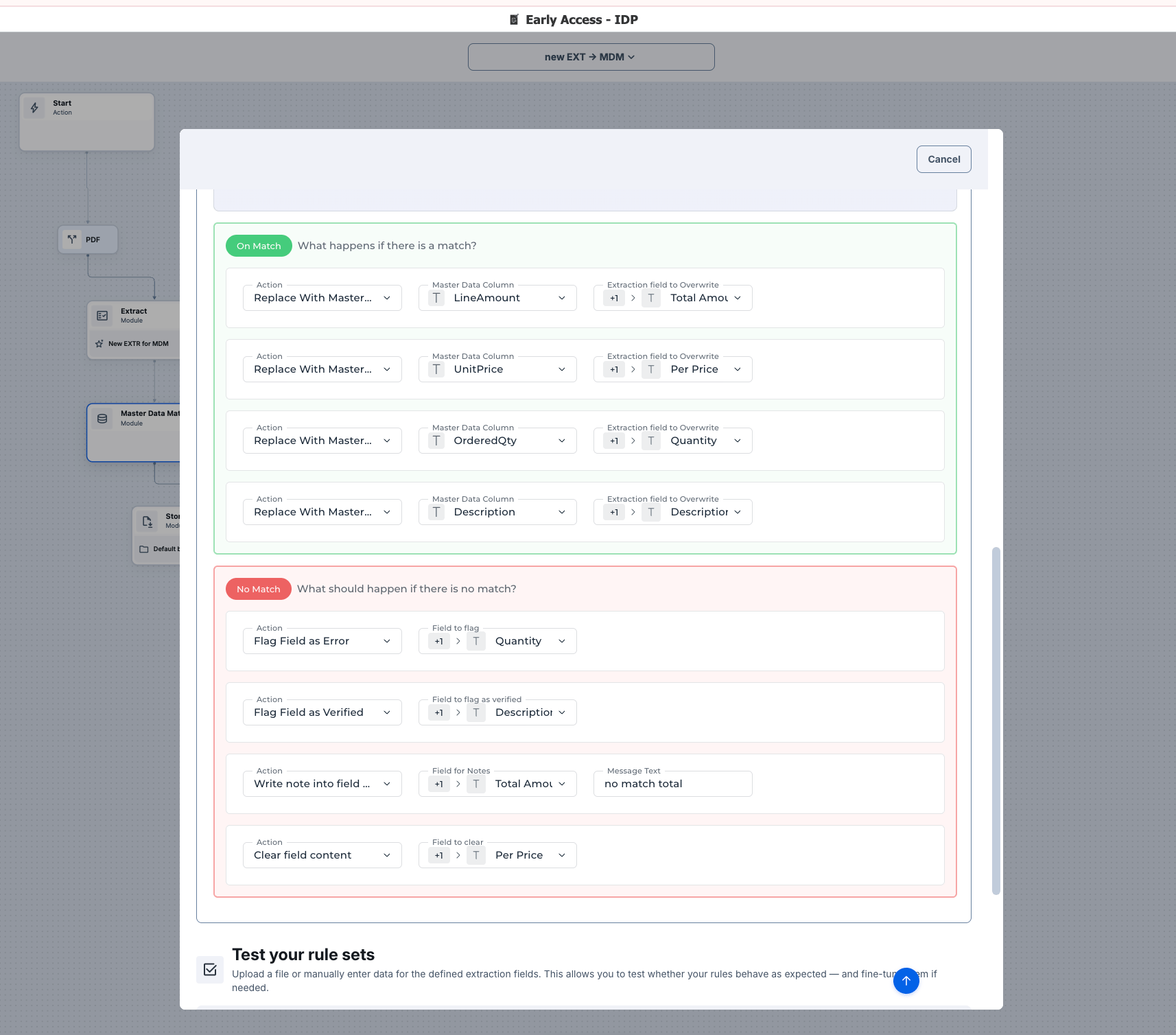
Define a rule set for line item-level matching by specifying what qualifies as a match and determining what actions to take if no match is found.
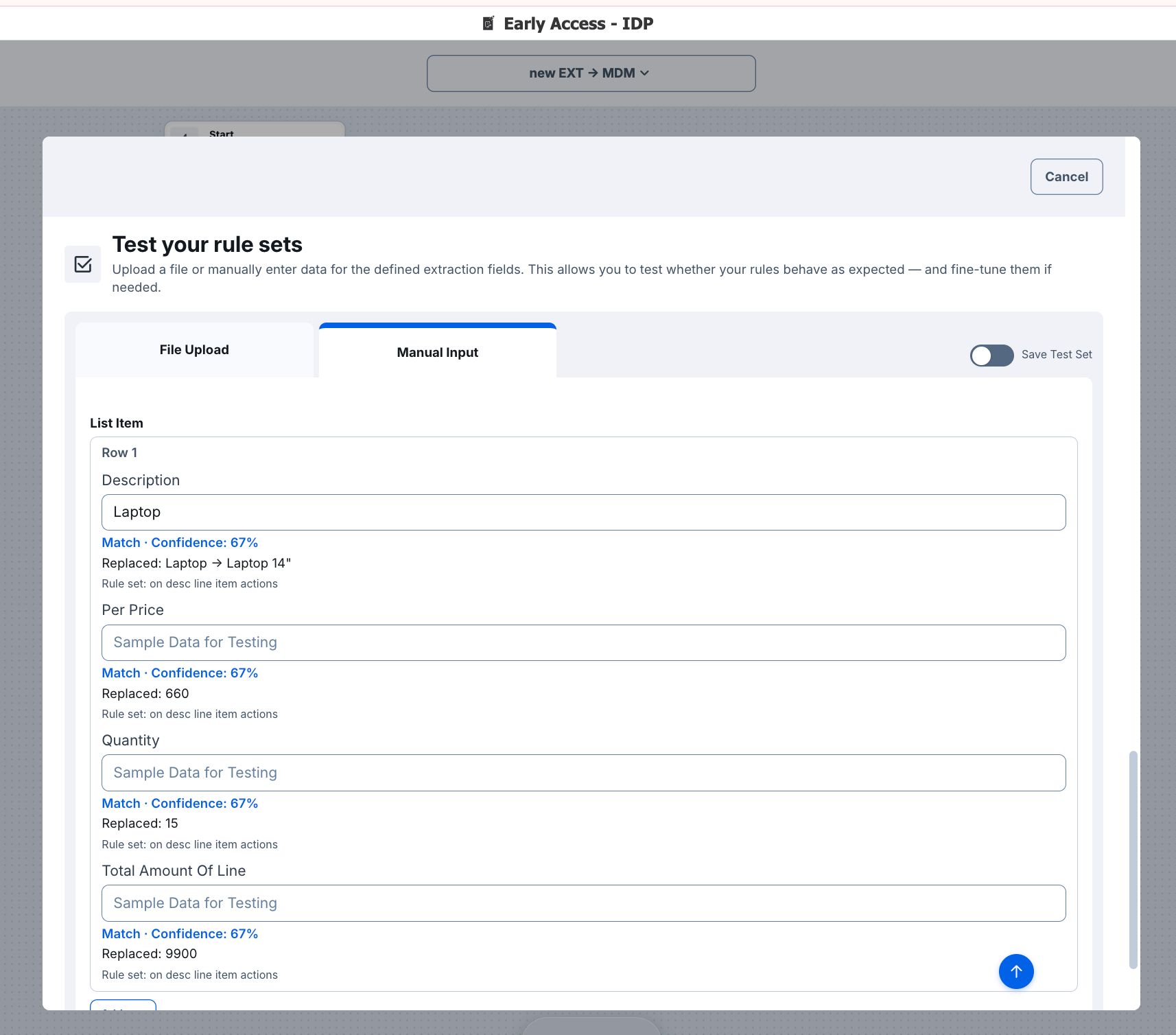
Test your rules on input data using either manual entry or file upload.
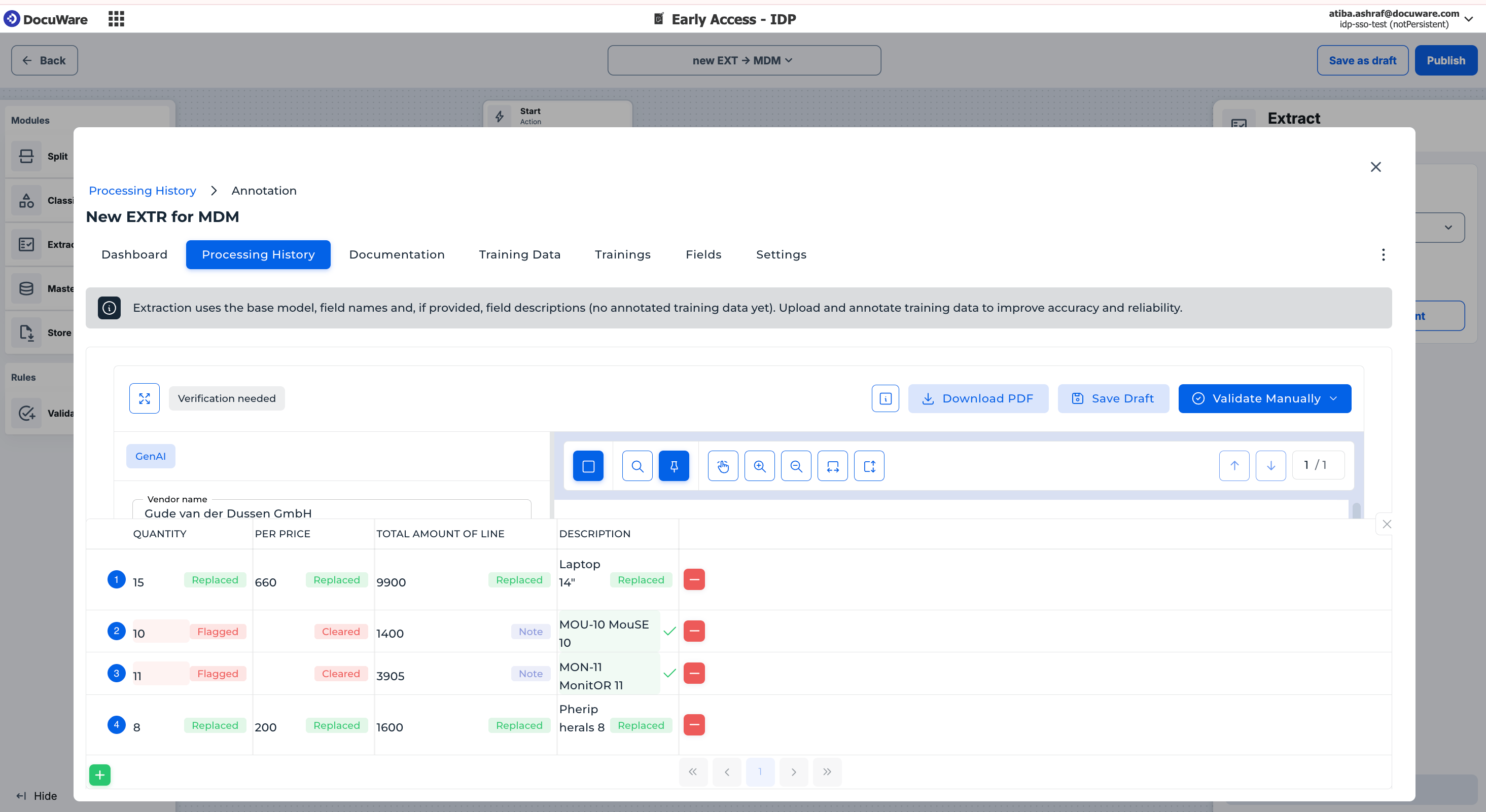
View the results of your rule set in action.
What’s new with line item matching
Previously, DocuWare IDP only allowed you to match and validate header fields, such as overall invoice totals or vendor information, against your master data sources. This meant that important details like item descriptions, unit prices, quantities and line amounts within the invoice or purchase order index table had to be manually checked, leaving room for errors and inconsistencies at the granular level.
Now, for each line item in your invoice or document index tables, DocuWare IDP automatically compares extracted values such as product description, unit price, quantity and line amount against your master data. Within the Master Data Matching tab, you can now select these line item fields when setting up rule sets, making it possible to apply matching and validation at the most detailed level.
For matched fields, DocuWare IDP can replace the extracted values with your master data values. For unmatched fields, you can choose to flag them for review, clear the values, or add notes directly to the record. Actions can also include marking fields as verified or marking the whole document as verified, depending on your rules.
All results and status tags such as Replaced, Flagged, Cleared, and Note are clearly visible in the index table during validation and can be reviewed in the processing history section. When you hover over a changed value, DocuWare displays the previous value and shows which rule set caused the update. This provides complete transparency into every change that occurs and makes it easy to audit the validation process for each line item.
This new level of automation and visibility helps streamline data entry, improves accuracy and ensures every detail is fully reviewed and auditable across your document workflow.
Where to find it and test line item matching
Line item matching is fully integrated into your existing flows. To access it, go to DocuWare Early Access, then open IDP and navigate to IDP Flows. Select and open your flow. In the IDP Configurator, go to the Master Data Matching node and choose Rule Sets, then open the rule set you want to edit. Under the sections "What happens if there is a match?" and "What should happen if there is no match?", you can now select line item fields such as Description, Per Price, Quantity and Total Amount of Line as target fields for rule actions. This enables detailed matching and processing for each line item individually.
You can use the "Test Your Rules on Input Data" function to preview how each rule will be applied. The tool presents a detailed breakdown of how each line item is processed and displays a status indicator, including tags like Replaced or Flagged, for each row. This allows you to instantly view the outcome for every line item in your document, for example, identified as Row 1, Row 2, and so on.
Line item matching in DocuWare IDP significantly increases efficiency, reduces risks from manual errors and supports confident, consistent business data. For more information, visit the Knowledge Center.